If you have a GT PSA (Personal Service Account) account, you may have the capability to run your applications with administrative privileges on your Windows operating system. This can be particularly useful for tasks that require elevated permissions, such as installing software and modifying system settings. There are several methods to execute your applications as an administrator. Below are some of them.
Note: To use any of these methods, you must connect to the GT network or use GT VPN. Running applications with administrative rights requires one of these connections to ensure secure access and compliance with GT policies.
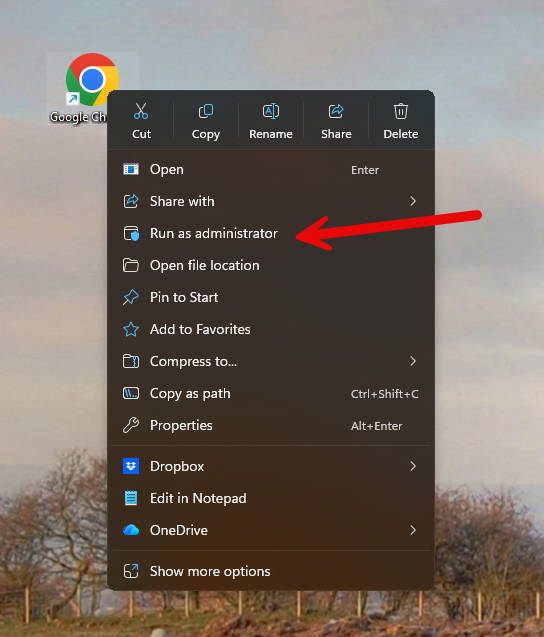
1. Right‑click → “Run as administrator”
The simplest method. First, right-click the application (.exe or shortcut), then select Run as administrator.
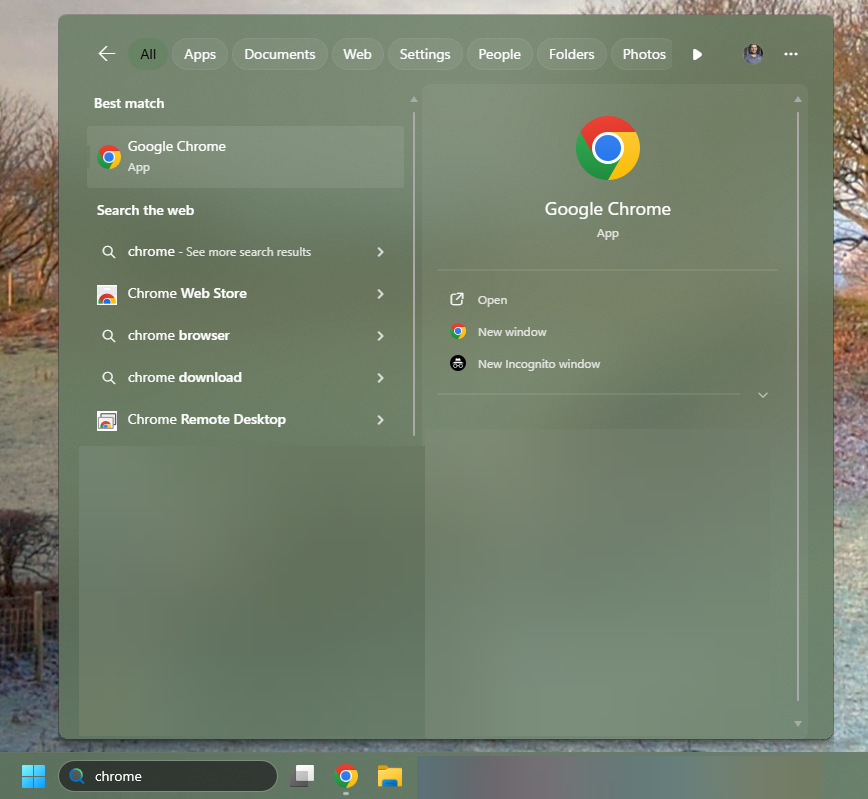
2. Start Menu Search Shortcut
- Open Start Menu
- Search for the app
- Press Ctrl + Shift + Enter, This instantly launches the app with admin privileges.
3. Run Dialog
- Press Win + R
- Type a command to run your application (e.g.,
cmd) - Press Ctrl + Shift + Enter instead of just Enter
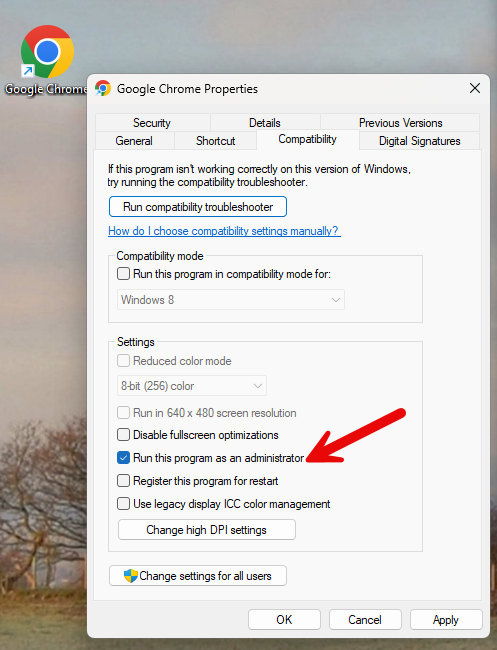
4. Always Run as Administrator
- For apps that always need elevation. Right‑click the application → Properties
- Go to the Compatibility tab
- Enable Run this program as an administrator
- Click OK