Using Mailman
TSO offers a Mailman mailing list service to manage e-mail lists that end in @cc.gatech.edu. To use the service and ensure a successful user experience, you are required to do the following:

TSO offers a Mailman mailing list service to manage e-mail lists that end in @cc.gatech.edu. To use the service and ensure a successful user experience, you are required to do the following:
To open or add a calendar to your Office 365 account, you can use the following procedure.
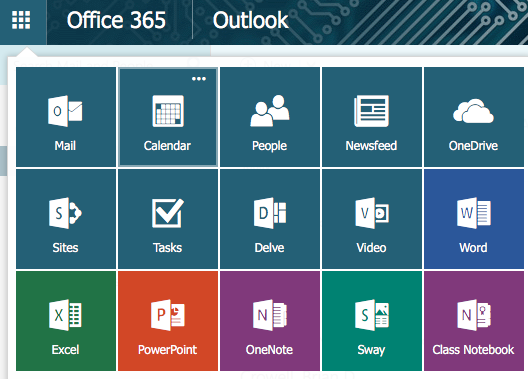
Login to https://mail.gatech.edu using your GT credentials. Then, select the grid at the top left and select Calendar.
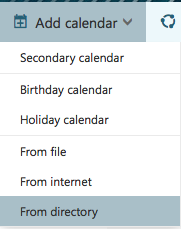
Near the top of the screen, click Add calendar -> From directory.
WARNING: The TSO Help Desk does not support Gmail. If you decide to use Gmail as a Store and Forward destination, you do so at your own risk. The information in this HowTo has been provided for your benefit, and is unsupported.
If you have your Office 365 email account configured on your mobile device, it is possible to remotely wipe your device from within Office 365. This is useful if your phone goes missing or is stolen and you want to be sure that any sensitive data stored on it will not be compromised.
CAUTION! This procedure will clear all data on the mobile phone, including installed applications, photos, and personal information.
1. Log in to your Office 365 account at my.gatech.edu.
2. Under your folders heading in Outlook, click on More for a better view of your inbox folders.
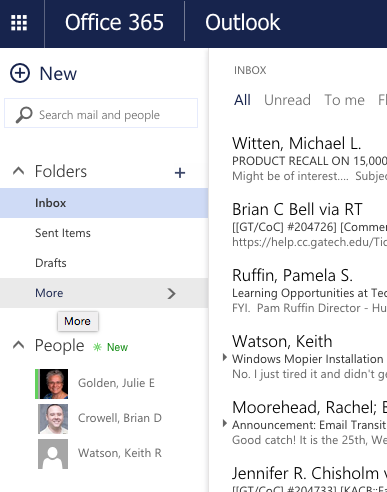
3. Right click on the inbox folder you would like to share. If you would like to share all folders in your inbox, right click on your name.
You can click on the link below to learn how to find your Google Calendar address -
https://support.google.com/calendar/answer/37103
Then, please follow the steps below to add this calendar.
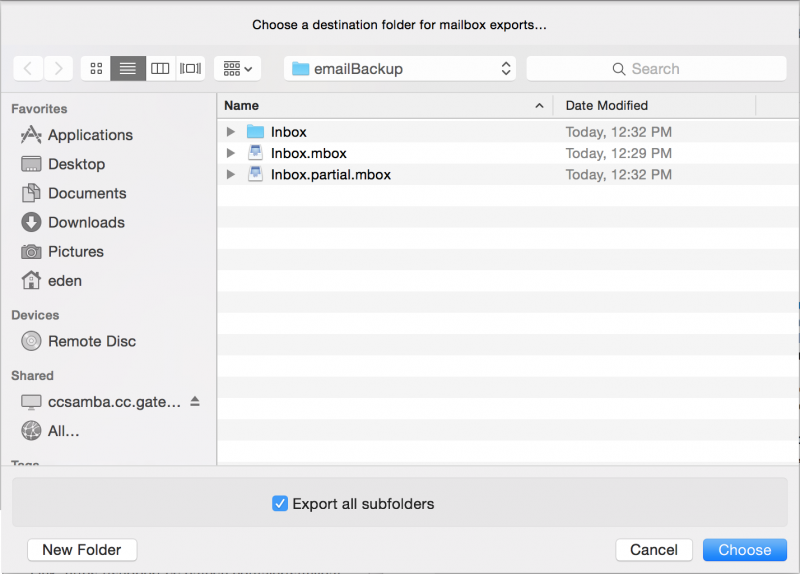
This article documents exporting a mailbox from OS X Mail to a local file. With Mail open, select the desired mailbox, then select Export Mailbox... from the Mailbox menu.
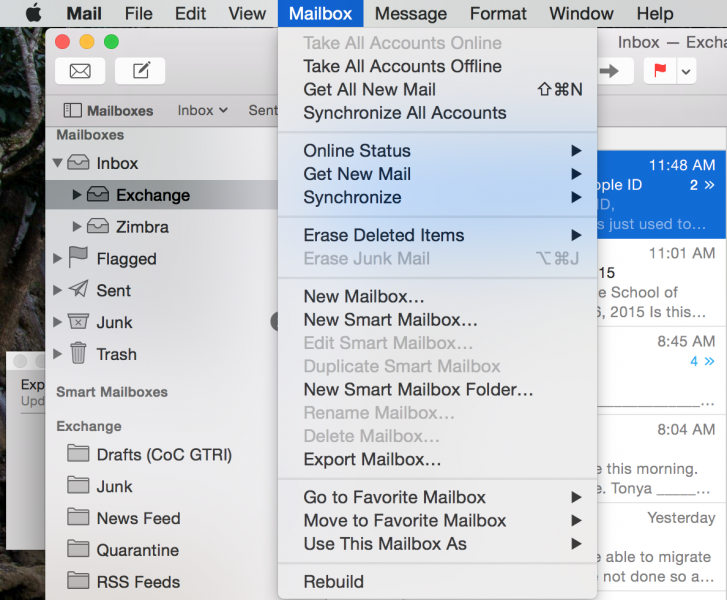
In the next window, select the "Export all subfolders" checkbox and the desired location of the file, then click Choose.
Typically, you can't email very large files (see http://support.cc.gatech.edu/faq/how-big-attachment-can-i-email for sample maximum file sizes). Even if an attachment's size falls within the allowed sizes, sending files to multiple recipients, such as through a mailman list, can really slow down delivery time as well as chew up recipients' mailbox quotas. You can avoid this by sharing the file through OneDrive. Here, we'll show you how to do so using the Office 365 web interface.